Connecting your business to Claude and ChatGPT
Give your assistant an address and a permission, and it works inside your business from the conversation you already use.
Your business has a door an assistant can come in through. Once it is connected, you ask it about tomorrow's bookings, have it add a customer, or ask how the month is going — in the same Claude or ChatGPT conversation you already work in.
Nothing to install, no key to copy. Two things: your address, and your permission.
1. Copy your address
In your back office, Settings → Security → API/MCP credentials. Your business's address is at the top, with a copy button beside it.
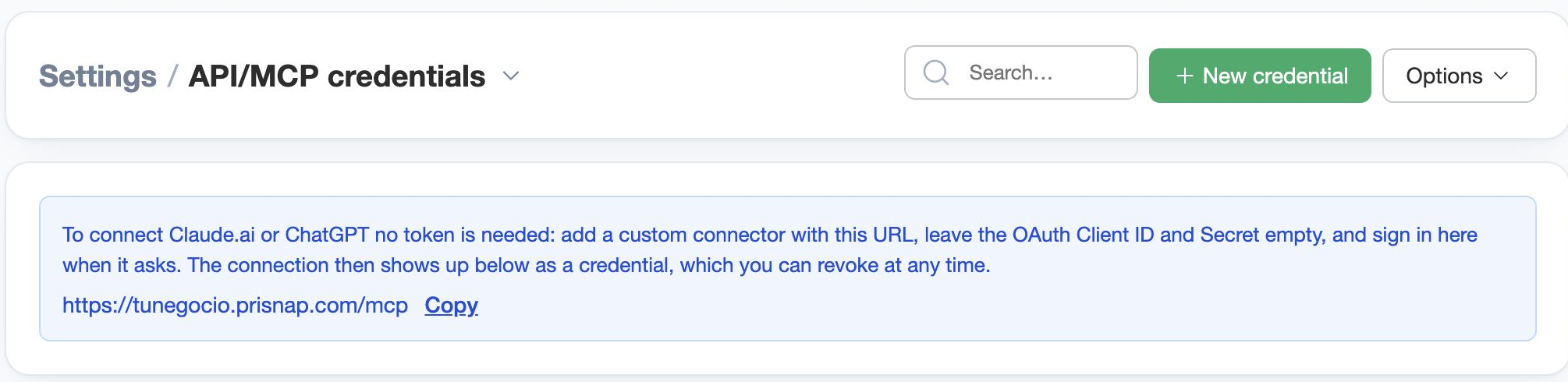
It is your own domain with /mcp at the end:
https://yourbusiness.prisnap.com/mcp
2. Add it in Claude
In claude.ai: Settings → Connectors → Add custom connector.
- Paste the address
- Leave the Client ID and Secret empty — your business issues them itself
3. Sign in and press Allow
Connecting opens a window from your own business. Sign in with your usual account and press Allow.
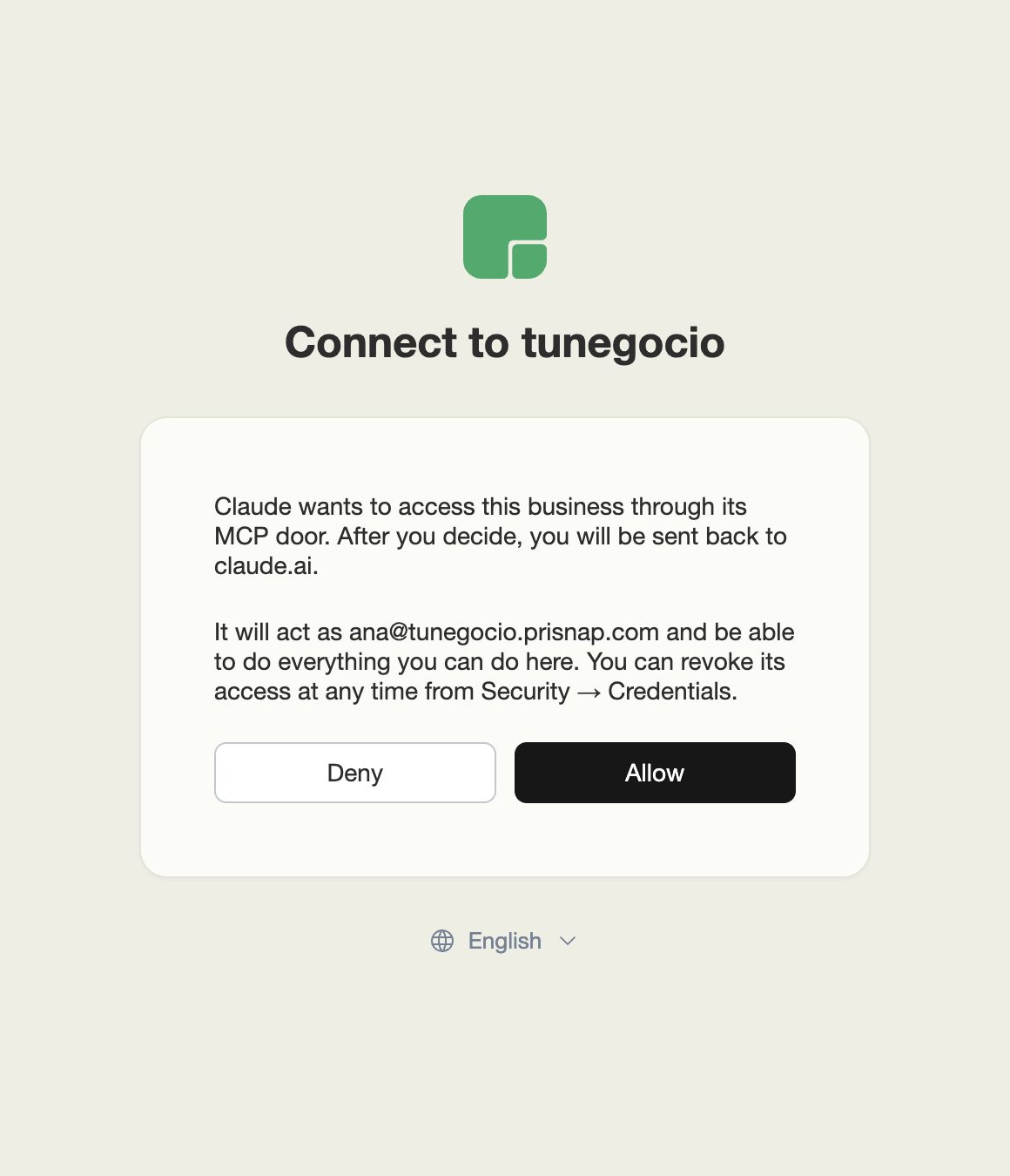
That is it. The assistant acts as you: it does what you can do, and it sees nothing you cannot see.
And in ChatGPT
The same with other names: Settings → Connectors → Create, paste that same address and choose OAuth authentication. The same window opens, you sign in and allow.
What to ask it
Plain words, your own:
- "What's booked tomorrow afternoon?"
- "Add Emma Clarke with this phone number and send her the payment link."
- "How much did I invoice this month compared with last?"
- "Invoice the customer on court 2 for two hours and the racket hire."
How to cut the access off
The connection shows up on that same screen, Settings → Security → API/MCP credentials, as one more credential. Send it to the trash and it stops having access there and then.
What about the terminal?
If you work with a coding agent — Claude Code, Codex — the connection also carries a token, and it lets you write your business's own modules. That one is Developing with Claude Code.